1Sign in and download
- Go to autoclick.emolio.com and click Sign in.
- Click Sign in with Google, or type your email and click Email me a sign-in link.
- Use the same email you bought with. Your licence is linked to it.
- Under Your Emolio AutoClick, click Download installer. You get
AutoclickSetup.exe.
You see the price list instead of the download button? Then you're signed in with a different email. Click Sign out and sign in with the email you bought with.
2Windows warning
Windows is careful with new programs from smaller companies. When you open the installer you may see this blue window:
Windows protected your PC
Microsoft Defender SmartScreen prevented an unrecognised app from starting.
More info
More info
Don't run
- Click More info.
- Click Run anyway.
3Install
Click Next until it's done. No administrator password is needed.
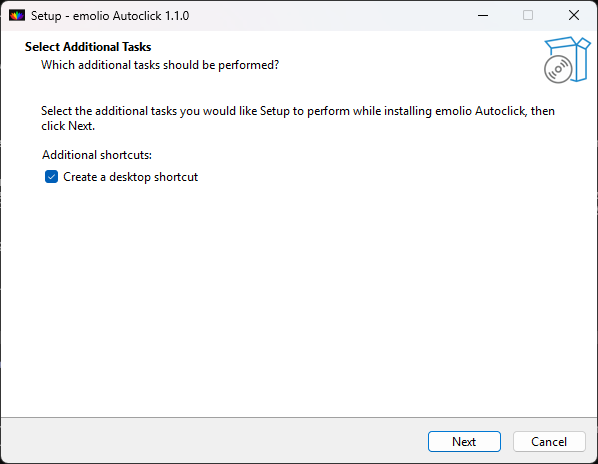
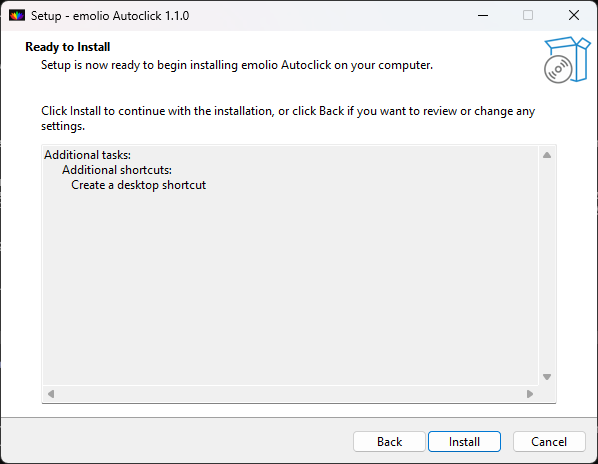
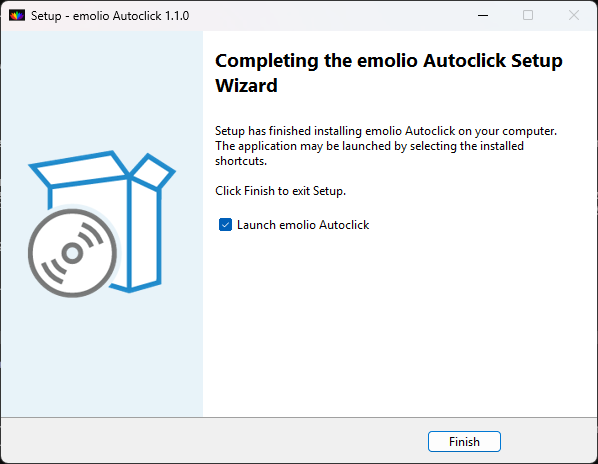
Later you start it from the Start menu or the desktop icon emolio Autoclick.
4Activate
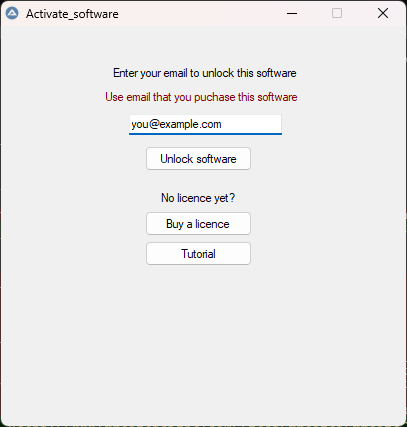
- Make sure the computer is connected to the internet.
- Type the email you bought with and click Unlock software.
Your licence works on a fixed number of computers (shown in your account). The first computers you activate take those places.
5Choose your Hunter version
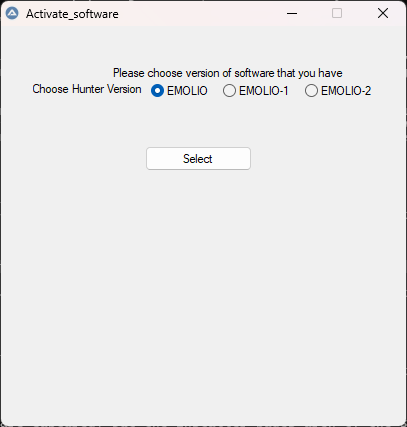
Hunter software is sold under different names but comes in three layouts. Choose EMOLIO, EMOLIO-1 or EMOLIO-2. Not sure? Try EMOLIO first. If the clicks land in the wrong place, change it in File → Settings, or email us a screenshot of your Hunter screen.
6Prepare Hunter
- Start your Hunter / Meta Hunter software as usual and do the client's scan.
- Open the client's result screen, the screen with the body picture and the buttons on the right.
- Connect the headphones (bioconnector). The Meta therapy button must be green; AutoClick checks this before it starts.
- Don't move Hunter's window while AutoClick is working.
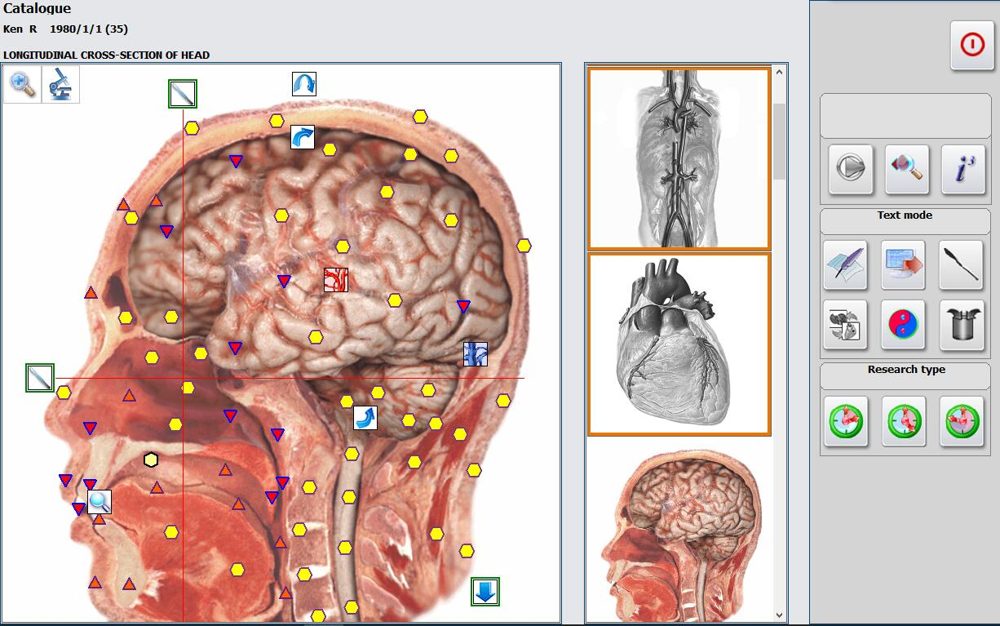
7Run a session
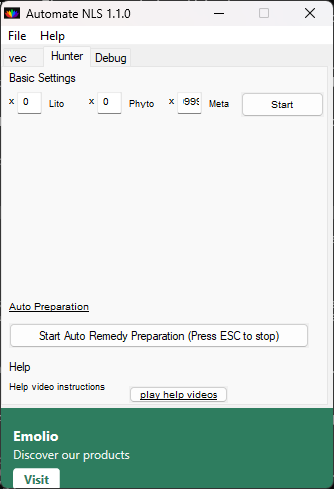
- LitoHow many times to run litotherapy.
- PhytoHow many times to run phytotherapy.
- MetaHow many times to run Meta therapy.
- StartRuns it all. At least one number must be above 0.
- Auto PreparationStart Auto Remedy Preparation prepares the remedies automatically.
- EscStops AutoClick at any moment.
While AutoClick runs, it moves the mouse and clicks for you. Don't use the computer at the same time; press Esc if you need it.
Is your Hunter in another language? In File → Settings, enter the words your Hunter uses for Litotherapy and Phytotherapy, so AutoClick finds them.
8Updates and news
- When you start AutoClick, it checks for a new version. If there is one, it asks "Do you want to update now?". Click Yes and it installs the update and restarts by itself.
- You can also check yourself with File → Update.
- The green bar at the bottom shows Emolio news. Click it to read more in your browser.
9Help
- New computer? Email info@emolio.nl and we free a place on your licence.
- "Licence for this feature is not available": your licence doesn't include this part (Hunter or Vector). Check your account or email us.
- Clicks in the wrong place? Check the Hunter version (step 5) and send us a screenshot.
- Questions: info@emolio.nl